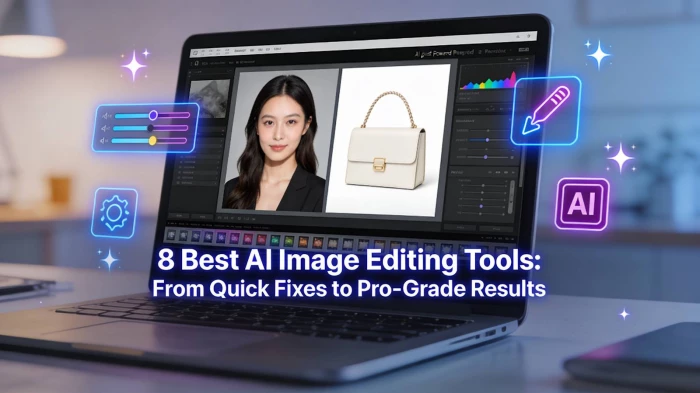
AI-powered image editors are now central to modern content creation, marketing, and design workflows. Instead of manually masking, retouching, or batch-processing hundreds of photos, AI tools can remove backgrounds, enhance quality, upscale resolution, and add or replace objects with a single prompt. This shift not only saves hours of repetitive work but also makes advanced visual editing accessible to non-designers who don’t know complex tools like Photoshop.
In 2026, the best AI image editors combine three things: smart automation, fine control when you need it, and pricing that matches your use case whether you are editing a handful of social posts or thousands of product images each month.
Adobe Photoshop with its Firefly AI engine is the gold standard for professional, AI-assisted image editing. It blends decades of pro-grade editing tools with generative features like Generative Fill and advanced object selection, making it ideal for serious photographers and designers.
Key features
● Generative Fill for adding, removing, or extending objects and backgrounds
● AI-powered selections and masking
● Neural Filters for one-click portrait, color, and style tweaks
● Content-Aware Fill and sky replacement
● Deep integration with the Adobe Creative Cloud ecosystem
Main pros
● Extremely powerful and precise for professional workflows
● Industry standard with massive learning resources and plugins
● AI tools feel naturally integrated into existing Photoshop features
Main cons
● Steep learning curve for beginners
● Requires a good computer and stable internet for cloud AI features
● Subscription-only pricing can be expensive over time
Best for: Professional photographers, agencies, designers, and advanced creators who need full control plus AI speed-ups.
Platform: Windows, macOS (desktop app) with some features via web.
Canva Pro integrates AI magic tools into a drag-and-drop design environment, making sophisticated edits easy for non-designers. You can remove backgrounds, edit specific areas with prompts (Magic Edit), and auto-generate designs or variations optimized for social media.
Key features
● AI background remover
● Magic Edit for brushing an area and changing it by text prompt
● AI-powered design suggestions and layout generation
● Huge template, stock photo, and icon library
● Team collaboration and brand kit support
Main pros
● Very beginner-friendly, no design skills needed
● Great for social media, presentations, and marketing assets
● All-in-one: design + AI editing + templates in one place
Main cons
● Less precise than Photoshop for pixel-level editing
● Some advanced AI tools locked to Pro plans
● Limited control for high-end retouching
Best for: Content creators, marketers, small businesses, and bloggers who want fast, on-brand visuals without learning complex software.
Platform: Web, Windows/macOS apps, iOS, Android.
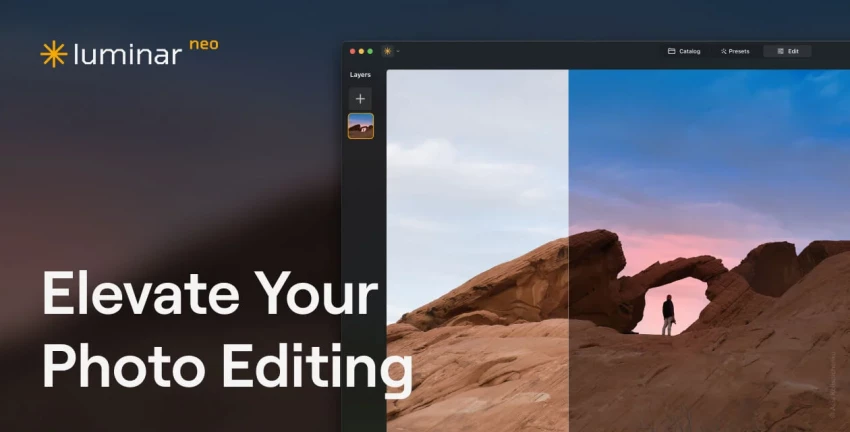
Luminar Neo focuses on AI-powered photo enhancement, giving photographers powerful tools to relight, retouch, and stylize photos with minimal effort. It’s especially strong for landscape and portrait photographers who prefer a one-time or simple subscription model over full Adobe suites.
Key features
● AI relighting and sky replacement
● Portrait enhancement (skin, eyes, face structure)
● Automatic color and tone corrections
● Creative AI effects and presets
● Works as a standalone app or plugin for other editors
Main pros
● Very efficient for batch photo enhancement
● More approachable than Photoshop for photographers
● Offers both subscription and perpetual license options
Main cons
● Less suited to complex compositing than Photoshop
● Best features targeted at photography rather than graphic design
● Desktop-only; no full-featured web editor
Best for: Photographers who want powerful AI enhancements without moving fully into Adobe’s ecosystem.
Platform: Windows, macOS.
PhotoRoom is built around AI background removal and product-focused editing, making it perfect for e‑commerce sellers and marketplaces. It can automatically isolate products, create clean backgrounds, and generate studio-like scenes in seconds.
Key features
● One-click background removal
● AI-generated product backdrops and scenes
● Batch editing for large product catalogs
● Templates for marketplaces and social platforms
● API access for integrating into online stores or apps
Main pros
● Extremely fast for product photos
● Tailored for e‑commerce workflows and marketplaces
● Batch processing saves massive time for catalog updates
Main cons
● Narrow focus on product and background editing
● Limited creative compositing compared to full editors
● Best features on paid plans; API is extra
Best for: E‑commerce brands, marketplace sellers, and product photographers who need clean, consistent images at scale.
Platform: Web, iOS, Android; API for developers.
Pixlr is a browser-first AI image editor with a lightweight interface and essential AI features, ideal for quick edits across devices. It’s popular among social media managers and casual creators who want powerful tools without installing heavy software.
Key features
● AI background remover
● Generative fill and object removal
● One-click enhancements and filters
● Templates and overlays for social media
● Works directly in the browser with optional desktop/mobile apps
Main pros
● No installation required for web version
● Good balance between features and simplicity
● Free plan available for basic use
Main cons
● Ad-supported experience on free plan
● Less suitable for very large or complex projects
● Advanced AI features limited compared to high-end tools
Best for: Social media managers, students, and casual users needing quick, on-the-go AI edits in a browser.
Platform: Web, Windows/macOS apps, iOS, Android.
Fotor offers an easy online editor that mixes classic adjustments with AI tools for enhancement, retouching, and design. It’s a solid choice if you want a straightforward AI photo editor plus basic design capabilities.
Key features
● AI photo enhancer (color, clarity, exposure)
● Portrait retouching and beauty tools
● Background remover and object removal
● Collage maker and basic design templates
● Web editor plus mobile apps
Main pros
● Beginner-friendly interface
● Combines photo editing and simple design tasks
● Affordable Pro plan for regular use
Main cons
● Fewer advanced controls for professionals
● Some AI effects can feel less natural on extreme edits
● Watermarks/limitations on free version
Best for: Beginners and small teams who want quick improvements, retouching, and basic designs without a heavy learning curve.
Platform: Web, Windows/macOS, iOS, Android.
Remini specializes in AI-powered enhancement and restoration, particularly for faces, old photos, and low-resolution images. Its ability to upscale, denoise, and sharpen details makes it a favorite for reviving old images and improving social media selfies.
Key features
● Face enhancement and detail reconstruction
● Resolution upscaling for low-quality images
● Noise reduction and sharpening
● AI restoration for old or damaged photos
● Mobile-first experience
Main pros
● Outstanding for restoring and improving faces
● Easy to use with few sliders and settings
● Great for turning old or blurry images into usable content
Main cons
● Narrow focus (not a full design editor)
● Over-enhancement can look unnatural if pushed too far
● Watermarks or limited exports on free version
Best for: Users who want to restore old photos, fix low-res portraits, and prepare better-quality images for sharing or printing.
Platform: iOS, Android, limited web tools.
Pixelbin is a modern AI image platform that combines optimization, background removal, and upscaling with a clean interface and developer-friendly API. It’s geared towards creators and businesses that want both no-code editing and automation in their pipelines.
Key features
● AI background removal
● Smart optimization and compression for web performance
● AI upscaling and enhancement
● Batch processing for large sets of images
● API for integrating into apps, websites, and workflows
Main pros
● Fast and accurate background removal and optimization
● Easy API integration for developers
● Scales well from individual creators to teams
Main cons
● Interface less design-focused than Canva for non-technical users
● Some advanced features behind higher-tier plans
● Best suited to workflows where performance and automation matter
Best for: SaaS products, developers, and teams needing automated AI image optimization and background removal at scale.
Platform: Web dashboard and API.
| Tool | Pricing model | Typical starting price* |
| Adobe Photoshop + Firefly | Subscription | Photography Plan from around $20.99/month |
| Canva Pro | Subscription | From around $14.99/month for individuals |
| Luminar Neo | Subscription / one-time | From about $79/year or $149 one-time license |
| PhotoRoom | Subscription | From around $11.99/month for Pro |
| Pixlr | Free + paid tiers | Premium plans from about $7.99/month |
| Fotor | Free + Pro subscription | Pro from about $8.99/month |
| Remini | Free + subscription | Mobile subscription; pricing varies by region |
| Pixelbin | Free + subscription | Lite from about $6/month, Pro from $21/month |
*Always check the official site for latest deals, regional pricing, and free trials.
When picking the right AI image editor, matching the tool to your workflow matters more than chasing the “most powerful” option. Consider these factors:
1. Primary Use Case: Pick tools based on what you edit most. Canva Pro, Pixlr, and Fotor work best for quick social designs, while Photoshop and Luminar Neo suit professional compositing. For e-commerce images, PhotoRoom and Pixelbin are more specialized.
2. Skill Level: Choose according to your experience. Beginners will find Canva, Fotor, and Pixlr easiest to use. Intermediate users can move to Luminar Neo or PhotoRoom, while advanced professionals benefit most from Photoshop with Firefly.
3. Platform Needs: Think about where you edit. Pixlr, Canva, Fotor, and PhotoRoom web are lightweight and browser-based. Photoshop and Luminar Neo provide full desktop control, while Remini and PhotoRoom apps are optimized for mobile workflows.
4. Budget and Volume: Your editing frequency should guide spending. Free tiers of Canva, Pixlr, and Fotor work for occasional edits. Regular creators may prefer Canva Pro or PhotoRoom Pro, while high-volume teams often choose Adobe plans or Pixelbin.
5. Integration and Automation: For large-scale workflows, automation matters. Pixelbin and PhotoRoom offer strong APIs that let marketplaces or SaaS platforms process thousands of images automatically, saving time and manual effort.
Using AI image editors effectively is as much about your approach as the tool itself. These tips help you get consistent, high-quality outcomes:
1. Start with the highest-quality image you can: AI tools perform better when the input isn’t extremely compressed, dark, or blurry.
2. Be specific with prompts: When using generative fill or text-based edits, describe style, mood, and details clearly—e.g., “soft natural light, minimal background, pastel colors” instead of just “nice background.”
3. Work in stages, not all at once: Apply one or two AI operations at a time (background, then color, then retouching) so you can undo or refine without degrading the image.
4. Use AI as a starting point, not the final step: Let AI handle repetitive work, then do small manual adjustments for exposure, contrast, or skin tone to keep images looking natural.
5. Create reusable presets and templates: In tools like Canva, Fotor, and Luminar, save looks or templates to keep your brand consistent across posts and campaigns.
6. Watch for over-processing: Overly smoothed skin, exaggerated sharpness, or unrealistic backgrounds can reduce trust and look “fake,” especially in product photos or professional portraits.
7. Check export settings: Export in the right format and resolution (e.g., web-optimized JPG/WEBP for sites, high-res PNG/TIFF for print).
There is no single “best” AI image editor for everyone, there is only the best tool for your specific workflow, skill level, and volume of work. For professional control, Photoshop with Firefly remains unmatched; for fast content creation, Canva Pro is hard to beat; for e‑commerce and automation, PhotoRoom and Pixelbin shine; and for restoration and enhancement, Remini and Fotor deliver impressive results.
As a content-focused creator, your ideal stack might actually be a combination—for example, Canva for layouts, PhotoRoom or Pixelbin for product cutouts, and Remini or Luminar for image quality and enhancement. The key is to define your priority (speed, quality, control, or automation), test 2–3 tools using their free plans, and then double down on the one that consistently gives you on-brand, high-conversion visuals with the least friction.

YouTube Shorts has shifted from a side experiment to one of the fastest ways to...
Samuel Osei1 day ago
Digital advertising has become brutally competitive: users scroll faster, acquis...
Samuel Osei4 days ago
AI image generators have shifted from experimental toys to core creative tools....
Peter Woods5 days ago
AI text-to-speech (TTS) has evolved from robotic audio to almost human‑sounding...
Samuel Osei1 week ago
IntroductionGraphic design is no longer limited to people who know Photoshop sho...
Funke Ogunleye1 week ago
Introduction: Why AI Animation Tools Matter NowThe line between traditional anim...
Sandra Campos1 week ago
Discussion