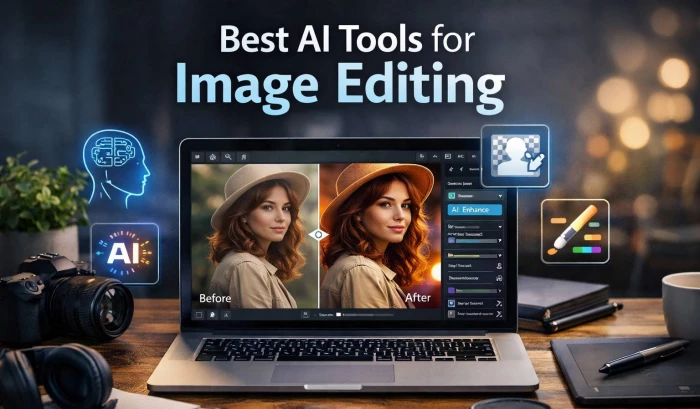
For years, great image editing demanded a powerful computer, pricey software, and a lot of manual work. That world is disappearing fast. AI‑driven editors can now remove objects in seconds, fix lighting and colors with one click, upscale low‑resolution photos, and even restore decades‑old images that you thought were unusable. Instead of wrestling with dozens of sliders and masks, you can focus on the creative direction while the algorithms handle the heavy lifting.
Let’s walk through six of the best AI tools for image editing right now, across desktop, browser, and mobile. The idea is not to crown one winner, but to help you pick the right tool for the job: social content, professional photography, e‑commerce, restoration, or simple everyday edits.
Adobe Photoshop has been the gold standard for photo editing and compositing for decades, and its recent AI upgrades have only widened the gap at the high end. Features like Generative Fill and Generative Expand let you remove objects, extend a canvas, or add entirely new elements using text prompts, often with production‑ready quality. Neural Filters can change facial expressions, clean up compression artifacts, and match color palettes between images, dramatically speeding up complex retouching workflows.
Where Photoshop truly stands apart is control. You get deep, layer‑based editing, advanced masking, blend modes, and precise adjustment tools alongside AI automation, which makes it attractive for photographers, designers, and agencies that need both speed and pixel‑level accuracy. On the downside, there is a learning curve, and the subscription pricing can feel heavy for casual users, but for professionals who live in Creative Cloud, it remains the most complete AI‑assisted editor in the market.
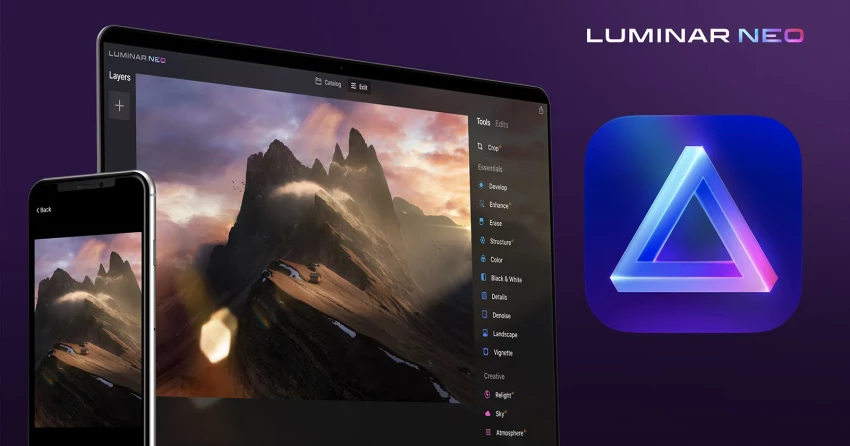
Luminar Neo is built from the ground up around AI‑first editing rather than having AI features bolted on later. Its standout tools include sky replacement, atmospheric effects, relighting that understands depth in the scene, and intelligent portrait enhancements that target skin, eyes, and facial structure. For landscape, travel, and portrait photographers, these capabilities allow you to go from a flat RAW file to a punchy, stylized image in minutes.
Neo also shines in usability. The interface is more approachable than a fully stacked Photoshop workspace, with presets and AI “templates” that automatically detect the subject and suggest starting points. This makes it ideal for creators who want dramatic, Instagram‑ready images without spending hours on layer stacks. However, it is less suited for heavy compositing or design work, and some users may find the stylistic look too strong if not dialed back.

Canva started as a drag‑and‑drop design tool, but its AI image features have become powerful enough that many creators rely on it as their main photo editor for social media and marketing. You get one‑click background removal, an eraser that can intelligently delete unwanted objects, AI image generation, and instant enhancements that clean up exposure and color. Because everything lives in the browser, there is no software to install and collaboration is straightforward.
The real advantage of Canva is its ecosystem. You can drop your edited photo directly into templates for Instagram posts, YouTube thumbnails, ads, presentations, or blog graphics, all within the same interface. That makes it especially attractive for small businesses, influencers, and content teams that need speed and consistency more than hyper‑fine control. It is not meant to replace a full pro editor for high‑end retouching, but for day‑to‑day branded visuals, it is hard to beat the convenience.
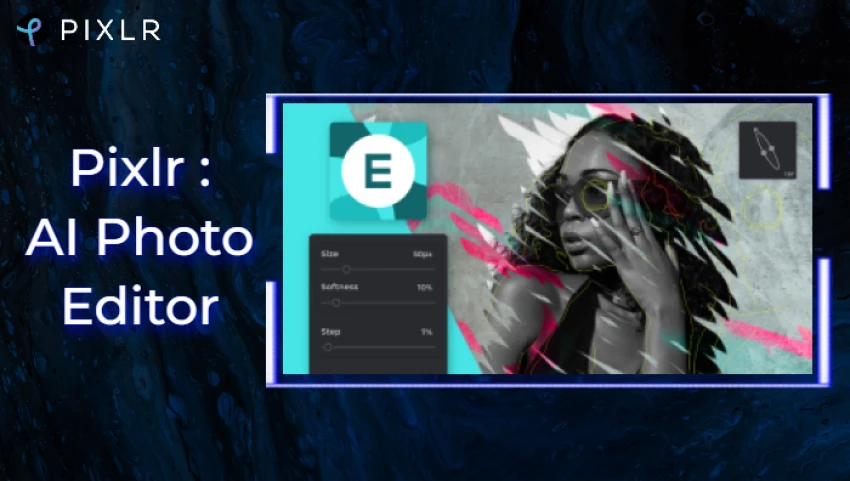
Pixlr positions itself as a quick, accessible, web‑based editor with surprisingly capable AI tools. You can remove backgrounds, auto‑enhance photos, apply artistic filters, and run batch operations without leaving your browser or logging into heavyweight platforms. Different modes—such as a Photoshop‑style editor, a simpler designer, and specialized AI utilities like background removal, let you choose the complexity you need for each task.
Because it is lightweight and runs on almost any device, Pixlr is ideal for users who want more flexibility than a pure mobile app but do not want the overhead of desktop software. It works well for quick social edits, basic graphic design, and on‑the‑go adjustments when you are away from your main machine. The trade‑off is that it cannot match Photoshop’s depth or Luminar’s advanced relighting, but as a fast, freemium web tool, it hits a sweet spot for many casual and semi‑pro users.
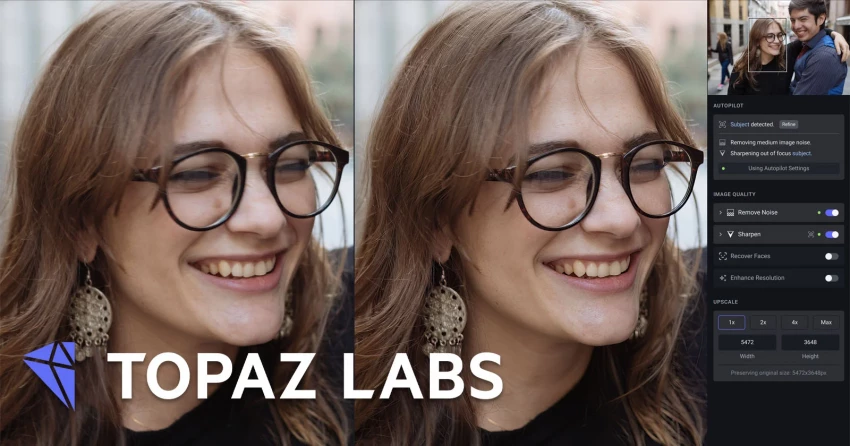
Topaz Photo AI is focused on one thing: image quality. Its AI models specialize in denoising, sharpening, and upscaling, turning noisy, soft, or low‑resolution files into cleaner, crisper images. For photographers working in low‑light conditions, wildlife shooters with high‑ISO files, or anyone dealing with older, small images, this can be transformative. The software analyzes the scene, distinguishes subjects from background, and applies tailored sharpening and noise reduction rather than a one‑size‑fits‑all filter.
This focus on enhancement rather than creative manipulation means Topaz Photo AI is often used alongside other editors rather than as a replacement. You might clean and upscale an image in Topaz before bringing it into Photoshop or a design tool. For e‑commerce sellers and stock contributors, the ability to upscale assets without visible artifacts can directly impact how professional a product catalog looks. The main limitation is that it does not offer robust layout or compositing tools; its value lies in pure image fidelity.
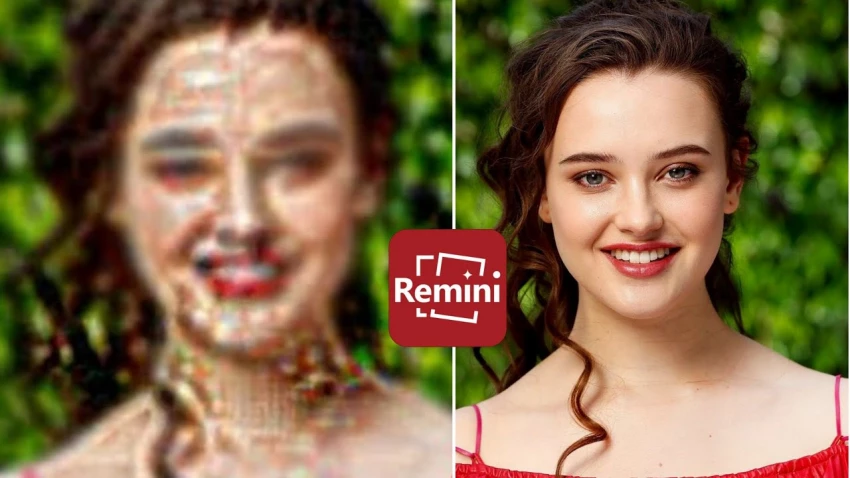
Remini is best known for its AI photo restoration capabilities, particularly for portraits and older, damaged images. With a few taps, it can sharpen facial features, increase resolution, and remove some visible defects from scanned prints or low‑quality mobile photos. This makes it popular for family archives, social media profile upgrades, and any use case where you want to salvage an image that would otherwise be unusable.
The mobile‑first design means you can work directly from your phone’s camera roll, making it accessible to non‑technical users. For creators, Remini can be a quick way to enhance client selfies, event photos, or older brand assets before further editing elsewhere. However, the algorithms are heavily optimized for faces, so non‑portrait shots may not see the same quality jump, and free tiers often have limits and watermarks that push serious users toward paid plans.
| Tool | Best For | Key AI Strengths |
| Adobe Photoshop | Professional editing and compositing | Generative fill/expand, neural filters, smart selections |
| Luminar Neo | Dramatic landscapes and portraits | Sky replacement, relighting, portrait AI |
| Canva | Social media and marketing graphics | Background removal, magic erase, AI image generation |
| Pixlr | Fast browser‑based edits | Background removal, auto‑enhance, web‑first workflow |
| Topaz Photo AI | Detail, sharpness, and upscaling | Denoise, sharpen, upscale with minimal artifacts |
| Remini | Restoration and selfie improvements | Face enhancement, old photo restoration |
When you choose an AI image editor, start from your primary workflow instead of the feature checklist. If you design campaigns, thumbnails, and social posts every day, the tight integration and templates in Canva or Pixlr will save you more time than niche retouching tools. If you are a photographer who regularly shoots events, weddings, or commercial work, pairing Adobe Photoshop or Luminar Neo with a quality booster like Topaz Photo AI gives you both creative flexibility and technical polish.
Budget and platform also matter. Browser‑based tools remove the need for powerful hardware, making them attractive for teams and students, while desktop apps usually provide better performance and deeper control for large RAW files. Ideally, you will test two or three tools with your own images; AI quality can vary dramatically depending on the content you feed it, and the “best” tool is the one that consistently delivers the look your clients or audience expect.
AI image editors have made photo editing faster and more creative by using smart algorithms to handle tasks like removing distractions, improving lighting, sharpening details, and restoring images with minimal effort. With many tools available—from advanced professional software to simple web and mobile apps—users can choose options that match their workflow, budget, and goals. Rather than there being a single best solution, the ideal AI editor is the one that fits individual needs and produces the best results when tested with real images.

I’ve used both Replika and Chai AI side by side for a while, and the longer I ke...
Grace Howard1 day ago
HeyGen is one of the most popular AI avatar video tools right now, but it is not...
Noura Belkacem3 days ago
AI subtitle generators have matured from “nice-to-have” add-ons to essential inf...
Sandra Campos4 days ago

AI has transformed motion graphics by automating time-consuming tasks like keyfr...
Noura Belkacem6 days ago
AI video generation has gone from experimental to essential, powering everything...
Peter Woods6 days ago

The gap between “I recorded something” and “I’m proud to publish this” used to b...
Alexander Hughes1 week ago
Discussion