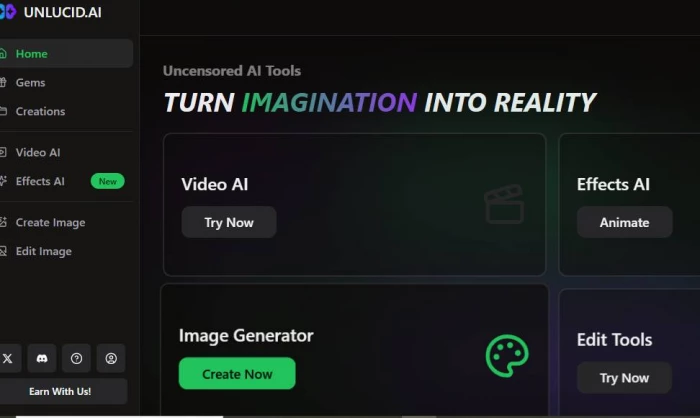
Unlucid.ai is a website that helps you create pictures and short videos using AI.
You don’t need design skills or special software. Everything works online in your browser.
You can:
● Create images by typing what you want
● Turn photos into short animated videos
● Edit pictures by removing or changing things
It’s mainly used by people who want quick and fun visuals for social media, creativity, or personal use.
You just type a sentence, and Unlucid.ai creates an image.
Example:
“A cute cat wearing sunglasses at the beach”
The AI turns this sentence into a picture.
You can upload a photo and make it move.
Popular video effects include:
● Dancing
● Zoom in/out
● Flying effect
● Smash or squish animation
This is great for short videos, reels, or fun content.
You can:
● Remove unwanted objects
● Change backgrounds
● Add new items to photos
You just select the area and tell the AI what to change.
Unlucid.ai works with “gems”, which are like points.
● Free users get some gems daily
● Creating images or videos uses gems
● You can buy more gems if needed
Everything runs online.
You don’t need:
● Special software
● A powerful computer
● Design experience
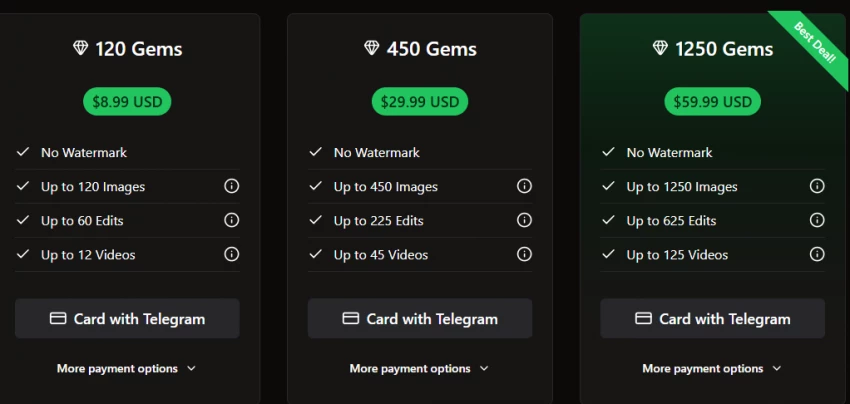
● $8.99 → Small pack (good for trying)
● $29.99 → Medium pack
● $59.99 → Large pack (best value)
Free users still get daily free gems, but they are limited.
Unlucid.ai has three main tools:
1. Image Generator
2. Image Editing
3. Image-to-Video Effects
…and an expanding Video AI tool too
1. Go to https://unlucid.ai in your browser. (Unlucid AI)
2. Log in or sign up (using your email or social login).
3. Look for “Image Generator” or “Create Image.”
4. In the text box, write what you want to see:
○ Example: “A cozy cottage in a snowy forest at sunset.”
5. (Optional) Choose an art style like realistic or cartoon if available.
6. Click Generate.
7. Wait a few moments. Your image will appear, then you can download it to your device.
Tips for better pictures
• Be clear and descriptive
• Try including lighting, colors, and mood (e.g., sunset light, warm tones)
1. On the Unlucid.ai menu, choose Image Editing or “Edit Tools.”
2. Click Upload Image, pick a picture from your computer.
3. Pick what you want to do:
○ Remove objects (erase something you don’t want)
○ Replace objects (swap a car for a bike)
○ Change clothing or style (alter outfits or look)
4. Use the tool’s auto or brush select to mark the area you want fixed.
5. In the text box, write what you want done (example: “Remove the person in the background”).
6. Click Apply/Edit and wait for the AI to finish.
7. Download the edited image once it looks right.
1. Choose Video AI / Effects AI / Image to Video from the menu.
2. Click Upload Image of the photo you want to animate.
3. Pick a video effect, some examples include:
○ Flying (like the subject floats up)
○ Squish (objects get squished)
○ Dance (fun movement added)
○ 360° Microwave (turns subject around like a plate)
○ Simply Animate (gentle motion)
4. (Optional) Choose how strong or long the movement should be.
5. Click Generate.
6. Wait for the video to be created.
7. Download your clip!
These animated clips are great for social media, slideshows, and short ads because moving visuals get more attention than still photos.
Best for: polished, professional images & videos
✔ Simple prompts
✔ Works well with Photoshop and Adobe Creative Cloud
Great for artistic projects and business visuals.
Best for: high-quality video creation and editing
✔ Advanced AI video tools
✔ Supports object motion and layered editing
Used by creators making professional content.
Best for: text-to-image creation (very accurate results)
✔ Great with complex prompts
✔ Easy to use inside ChatGPT or web apps
Perfect for stories, posters, blogs, creative ideas.
Best for: quick, fun AI videos
✔ Make videos from text or photos
✔ Lots of fun effects for social media
Great for creators who want cool short clips.
5. Novi AI
Best for: AI video generation with sound and style options
✔ Text-to-video with pre-set design styles
✔ Multiple languages & voiceovers
Excellent for engaging videos quickly.
Best for: customizable images
✔ Free and open-source
✔ Many models and art styles available
Great if you want maximum control and creativity.
Fun & experimental: Unlucid.ai or PixVerse
Simple, awesome images: DALL-E 3 or Adobe Firefly
Professional videos: Runway or HeyGen
Advanced customization: Stable Diffusion or Edimakor AI
| Aspect | Notes |
| Best for | Beginners & casual creators wanting quick AI visuals |
| Features | Text-to-image, image animation, editing tools |
| Pricing | Pay-per-use “gems” model (free daily gems included) |
| Ease of Use | Simple browser-based interface |
| Safety | Mixed trust ratings, exercise caution |
Unlucid.ai is a fun and creative place to experiment with AI visuals, but for professional work or secure use, more established alternatives may be a better choice.
What Is GoMyFinance.com?GoMyFinance.com is a financial content and tools platfor...
John Nyarko13 hours ago
What exactly is AaryaEditz.org? AaryaEditz.org is a resource-focused websit...
Ina Gupta1 day ago
1) Are “Gramhir AI” and “Gramhir Pro” the same thing?Best-supported conclusion-T...
Ina Gupta5 days ago
Moneydisquantified.org operates as an entry‑level personal finance content site...
Ina Gupta1 week ago
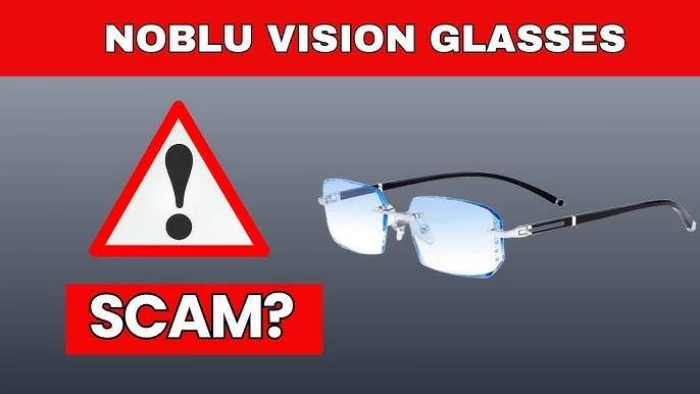
Noblu glasses are marketed as blue light blocking, “auto-adjusting” smart glasse...
John Nyarko1 week ago
Blooket is a browser‑based, game‑style quiz platform that lets teachers turn que...
Ina Gupta2 weeks ago
Discussion