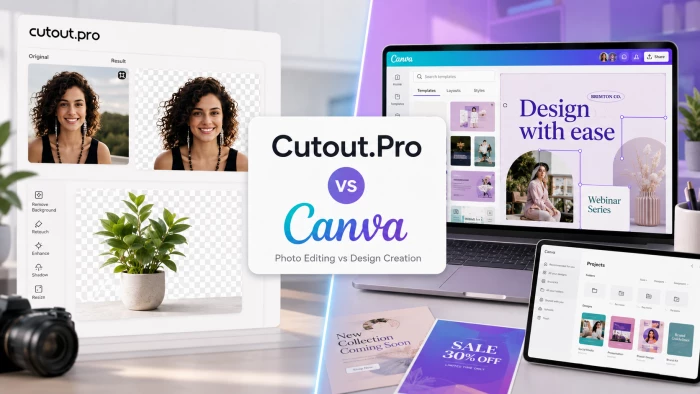
THE QUICK VERDICT Need to remove a background, retouch, enhance, restore, or upscale a photo or pull the background out of a video fast and in bulk? Cutout.Pro is the sharper instrument. Need to turn images into finished, on-brand, shareable designs - posts, slides, flyers, simple video? Canva wins by a mile. Many creators happily use both. |
"Quick visual editing" sounds like a single job, but Cutout.Pro and Canva were built to solve it from opposite directions. Cutout.Pro is a focused AI utility: you hand it an image or a video, it does one thing extremely well — strips the background, sharpens the photo, revives the old print — and hands it back. Canva is a creative workspace: you assemble a design from templates, text, and stock, then export something polished and on-brand.
So the real question isn’t “which tool is better?” It’s “what does quick editing actually mean for you?” This guide compares the two across the things that matter most — ease of use, background-removal quality, speed, features, AI, collaboration, and price — and tells you exactly which one belongs in your workflow.
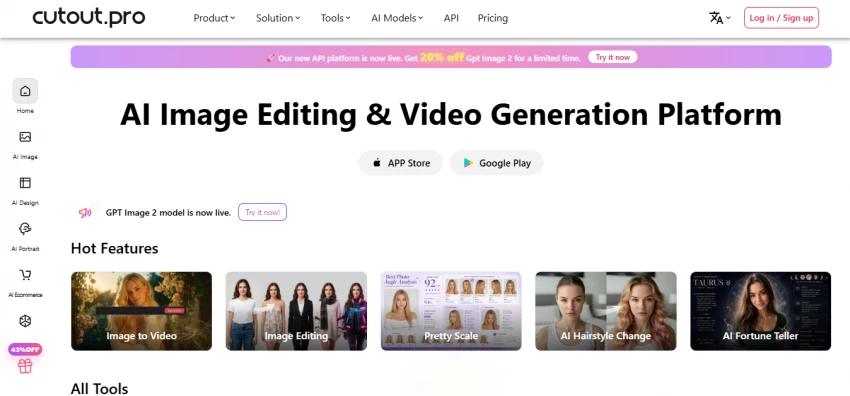
Launched in 2018, Cutout.Pro packs a stack of AI vision tools into a single browser tab, with iOS, Android, Mac, and Windows apps alongside. Its headline act is one-click background removal that works on both photos and video no green screen required backed by object removal, photo enhancement and upscaling, portrait retouching, old-photo restoration, black-and-white colorization, a passport/ID photo maker, and AI art and cartoon filters.
Accuracy on clean product shots and portraits is strong; on truly hard edges like flyaway hair, fur, or glass it lands around 85–92% a notch below dedicated background-removal specialists, but more than enough for most e-commerce and social work. Batch processing and a developer API make it a favorite for sellers and teams pushing hundreds of images through the same pipeline. What it deliberately is not: a design tool. There’s no real canvas, no template gallery, and no layering for building a layout from scratch.
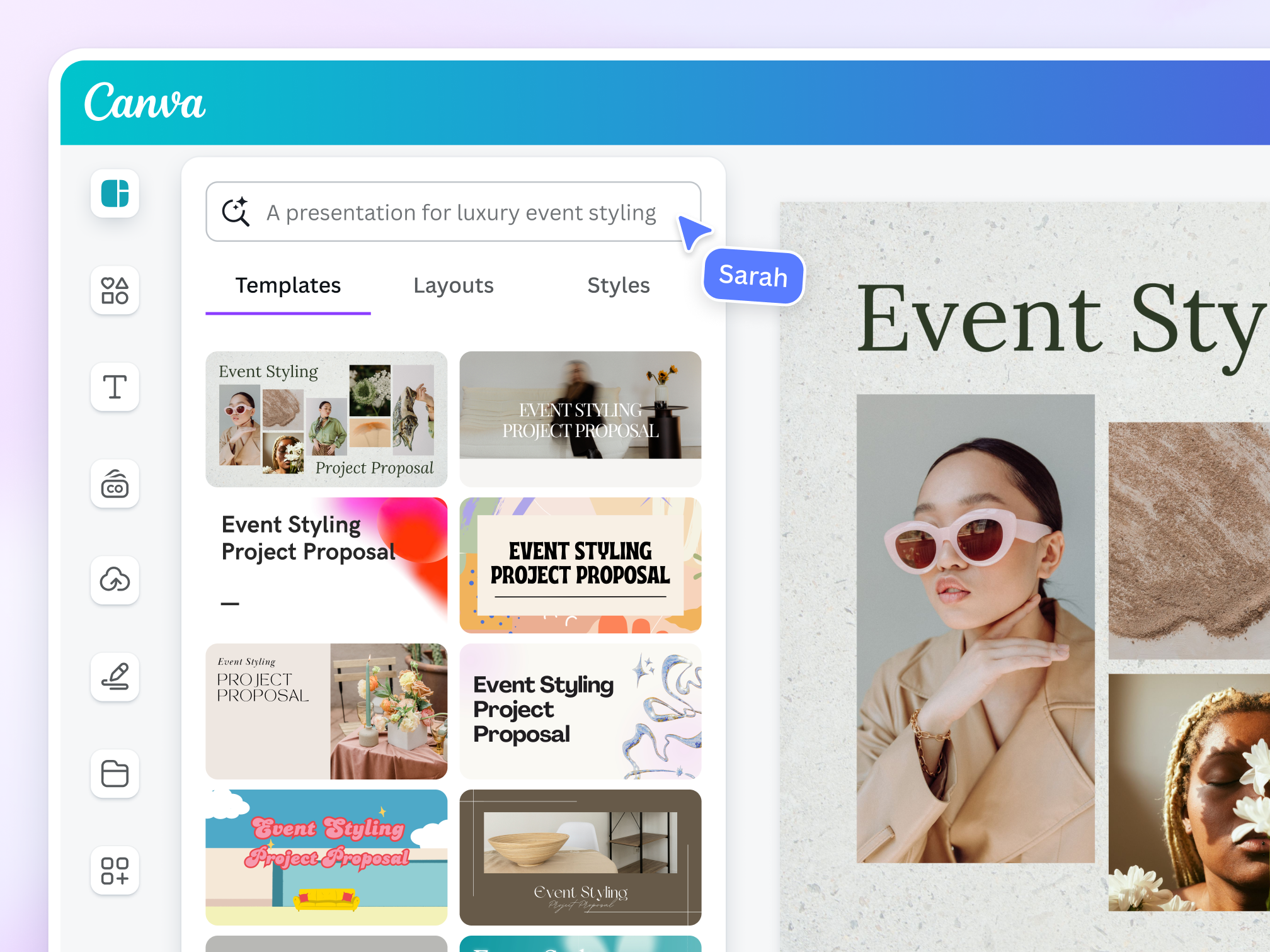
Canva is the tool that made graphic design feel approachable for everyone. Drag-and-drop editing, a library of 250,000-plus free templates (millions more on paid plans), and 100-million-plus stock assets let non-designers produce social posts, presentations, flyers, documents, simple videos, and even websites in minutes.
A one-click background remover, Magic Resize, and the Magic Studio AI suite — text generation, AI image creation, Magic Expand, and auto-design — handle quick edits and heavy lifting alike, while Brand Kits and real-time collaboration keep teams consistent. Where Canva is thinner is deep photo work: it will remove a background and tidy an image, but it isn’t built to batch-restore hundreds of raw photos, upscale to print resolution, or strip the background from video.
At a glance
| Feature | Cutout.Pro | Canva |
|---|---|---|
| Best described as | AI photo & video editing utility | All-in-one visual design platform |
| Ideal user | E-commerce sellers, photographers, content creators | Marketers, social creators, small businesses, teams |
| Background removal | Specialized; photo + video; ~85–92% on hard edges | One-click; photo only; great for everyday use |
| Photo enhance / restore | Yes — upscale, denoise, retouch, colorize | Basic adjustments only |
| Design & templates | Minimal | 250k+ free, millions paid; full design canvas |
| AI features | Editing-focused (enhance, art, cartoon) | Magic Studio: text, image gen, resize, expand |
| Collaboration | Single-user | Real-time editing, comments, brand controls |
| Batch & API | Batch + developer API | Limited; not built for bulk raw-image pipelines |
| Free tier | 5 credits (to trial) | Very usable; 250k+ templates; 5 GB |
| Entry paid (annual) | ~$4.17/mo (credit packs) | ~$10/mo (Pro, $120/yr) |
| Platforms | Web, iOS, Android, Mac, Windows | Web, iOS, Android, desktop |
| Learning curve | Near-zero for single tasks | Low, but a bigger toolset to explore |
The radar below scores each tool from 0 to 10 across eight dimensions. The shapes tell the whole story: Cutout.Pro spikes toward editing speed, background removal, enhancement, and automation, while Canva owns templates, AI generation, and collaboration. They barely compete on the same axes.
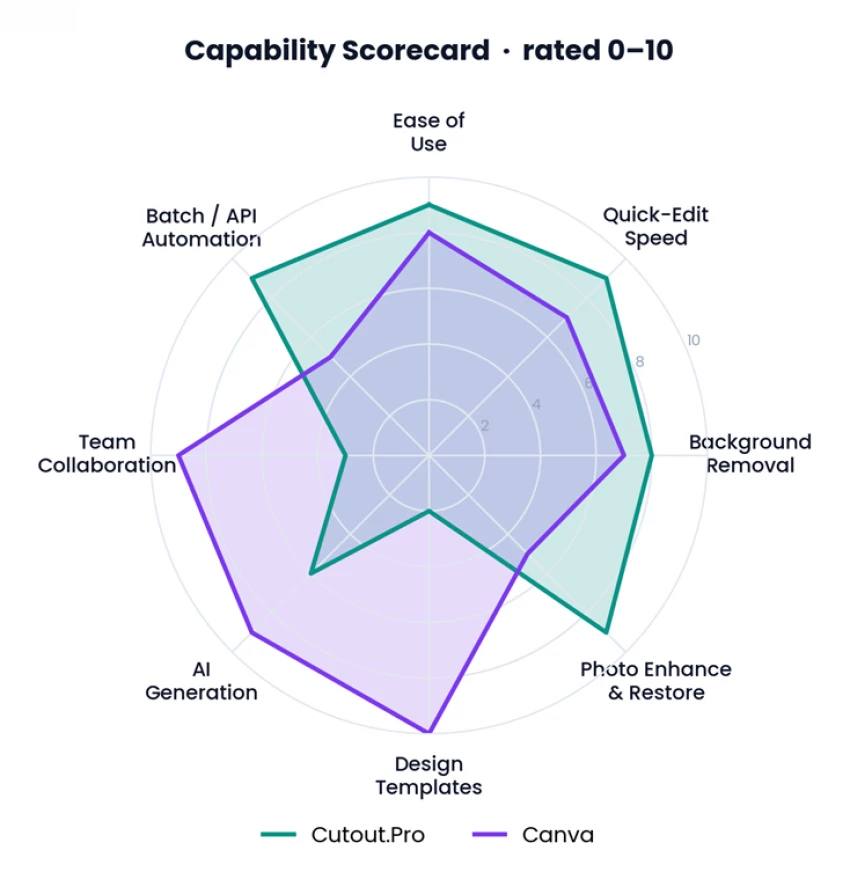
Figure 1 - Capability scorecard. Each tool is strongest exactly where the other is weakest.
Seven rounds across the dimensions that decide a quick-editing workflow. Each tool takes the rounds it was built to win.
Both are beginner-friendly, but in different ways. Cutout.Pro wins on simplicity for a single task: upload, pick a tool, download — there’s almost nothing to learn. Canva is also easy, but its canvas, panels, and enormous asset library mean there’s simply more to take in before you’re fluent. For “I just need this one thing done,” Cutout.Pro is faster to grasp; for ongoing creative work, Canva’s small learning investment pays off.
▸ Winner: Cutout.Pro (for single tasks)
This is the feature both tools are best known for. Canva’s remover is excellent and convenient because it lives right inside your design. Cutout.Pro is the more specialized engine: marginally cleaner on tricky edges, equipped with batch processing, and — crucially — able to remove backgrounds from video, which Canva can’t really match.
▸ Winner: Cutout.Pro
Time-to-result is where Cutout.Pro’s single-purpose design shines. There’s no document to set up and no canvas to navigate — drop the file in, let the AI work, and download. Canva adds a step or two because everything happens inside a design project.
▸ Winner: Cutout.Pro
It’s not close. Canva is a full design platform — templates, typography, layouts, charts, brand assets, scheduling — while Cutout.Pro intentionally stays a photo and video editor. If your “quick edit” ends with text on the image, a layout, or a branded post, you need Canva.
▸ Winner: Canva
Both lean hard on AI, but toward different ends. Cutout.Pro’s AI is editing-centric: enhance, upscale, restore, cartoonify. Canva’s Magic Studio is generative and broader: write copy, generate images from a prompt, resize a design across formats, and expand a photo’s canvas. For raw creative generation, Canva is deeper; for fixing and enhancing real photos, Cutout.Pro is more focused.
▸ Winner: Canva (breadth) · Cutout.Pro (photo enhancement)
Canva is built for groups — real-time co-editing, comments, shared Brand Kits, approval workflows, and per-seat team plans. Cutout.Pro is essentially a single-user utility; collaboration isn’t its game.
▸ Winner: Canva
Need to process a hundred product photos overnight, or wire background removal into your own app? Cutout.Pro’s batch mode and developer API are made for exactly that. Canva’s strength is hands-on design, not automated bulk pipelines.
▸ Winner: Cutout.Pro
Capabilities are one thing; the task in front of you is another. Here’s how the two stack up across the jobs people actually hire these tools to do.
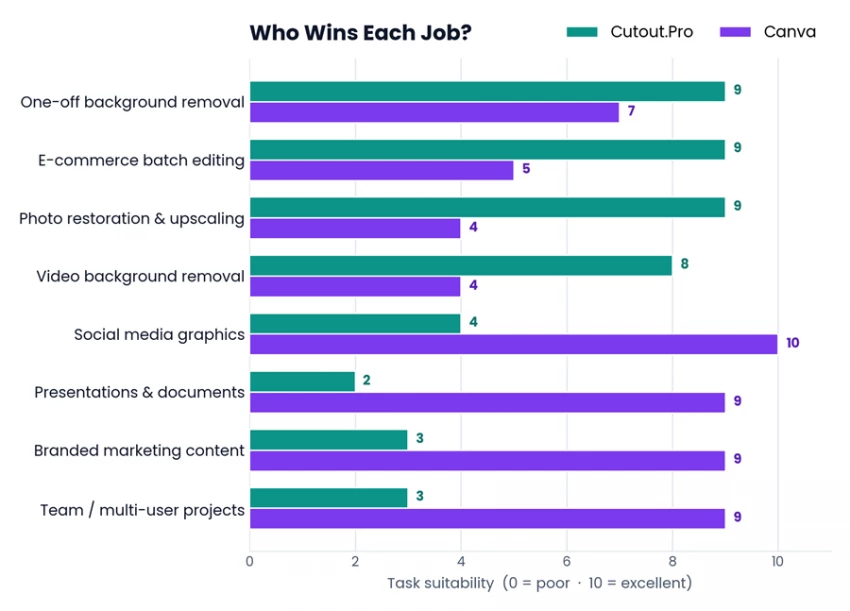
Figure 2 - Task suitability by job. Editing and bulk tasks lean Cutout.Pro; design and publishing tasks lean Canva.
The two price themselves as differently as they’re built. Cutout.Pro runs on credits: you spend them per image (a standard cutout is one credit, HD is two) or per second of video (three to five), and unused credits roll over up to five times your monthly budget — cheap for occasional, targeted edits. Canva is a flat subscription: pay once and design as much as you want, with cost living in seats and premium assets rather than per-export credits.
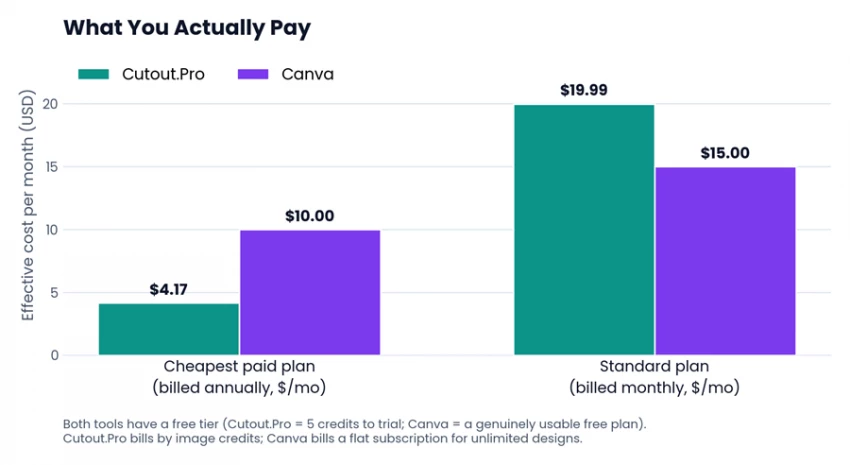
Figure 3 - Effective monthly cost. Cutout.Pro is cheaper to start; Canva offers flat-rate, unlimited design.
| Plan | Effective price | What you get |
|---|---|---|
| Free | $0 | 5 credits to trial the AI tools |
| Starter (annual) | ~$4.17/mo | Small monthly credit budget; standard = 1 credit, HD = 2 |
| Pro | ~$10/mo annual ($19.99/mo monthly) | 200 credits, HD output, priority processing |
| Business (annual) | ~$20.83/mo | Higher volume plus API access |
| API Growth / Scale | $49.99 / $149.99 mo | Programmatic pipelines, white-label, dedicated support |
Standard image = 1 credit · HD = 2 credits · video = 3–5 credits/second · credits roll over up to 5× your monthly budget.
| Plan | Price | What you get |
|---|---|---|
| Free | $0 | 250k+ templates, 5 GB, basic AI (~50 credits) |
| Pro | $15/mo (~$10/mo annual) | 100M+ assets, Brand Kit, background remover, Magic Studio, 1 TB, ~500 AI credits |
| Teams / Business | $10/user/mo annual (~$20 monthly) | Brand controls, approval workflows, collaboration; ~2–3 seat minimum |
| Enterprise | Custom | SSO, SOC 2, ISO 27001, audit logs, admin controls |
| Education / Nonprofit | Free | Pro features for eligible teachers, students, and charities |
Prices are effective USD as of June 2026, billed annually where noted; they vary by region and promotion. Annual billing typically saves the most.
Forget “better” match the tool to the job. Use the two cards below as a fast gut-check.
Choose Cutout.Pro if… Your main job is removing backgrounds, retouching, enhancing, restoring, or upscaling photos. You process many images at once, or want editing inside your own app via API. You need background removal on video - no green screen. You want a no-canvas tool: upload, click, download. You make ID/passport photos or revive old family pictures. | Choose Canva if… You design and publish: social posts, slides, flyers, docs, simple video. Brand consistency, templates, and reusable assets matter. You collaborate with a team in real time. You want one flat subscription for unlimited designs. You’re a non-designer who wants professional results fast. |
USE BOTH IF… …you want the best of each. A common pro workflow: clean up and enhance raw images in Cutout.Pro, then drop the polished cutouts into Canva to lay out, brand, and publish. The two tools overlap less than they complement. |
There’s no single winner here, because Cutout.Pro and Canva aren’t really competing for the same seat. If quick visual editing means cleaning up, enhancing, or cutting out photos and video as fast as possible — especially in bulk — Cutout.Pro is the sharper instrument. If it means turning images into finished, on-brand, shareable designs, Canva is in a class of its own. The scorecard below splits almost evenly, and that’s the point: the best choice depends entirely on what you’re trying to make.
| Category | Winner |
|---|---|
| Ease of use — single task | Cutout.Pro |
| Ease of use — whole workspace | Canva |
| Background removal — photos | Tie |
| Background removal — video | Cutout.Pro |
| Photo enhancement & restoration | Cutout.Pro |
| Speed for one quick edit | Cutout.Pro |
| Templates & design power | Canva |
| AI generation breadth | Canva |
| Collaboration & teams | Canva |
| Batch work & automation | Cutout.Pro |
| Value — occasional edits | Cutout.Pro |
| Value — unlimited design | Canva |
Plenty of creators keep both tabs open and let each do what it does best. That’s not indecision — it’s the smartest way to work fast.

New Claude Model Targets Agentic AI WorkflowsAnthropic has launched Claude Sonne...
Samuel Osei3 months ago
Gemini’s Image Tools Get a Wider RolloutGoogle is expanding access to Gemini’s p...
Alexander Hughes3 months ago
Two AI video generators, two very different first days. I ran PixVerse through i...
Alexander Hughes3 months ago

Two of the most talked-about AI chat platforms. I opened both, picked a characte...
Alexander Hughes3 months ago

The two-minute versionIf you only read one thing, read this. The rest of the doc...
Alexander Hughes3 months ago
Why Seedance 2.5 mattersSeedance 2.5 is the latest release in ByteDance’s Seedan...
Alexander Hughes3 months ago
Discussion