Most AI video tools are very good at one thing: producing a single, polished five-second clip. The trouble starts when you want that clip to become an actual story, with scenes that connect, a character who looks the same in shot twelve as in shot one, and a runtime measured in minutes rather than seconds. MagicLight AI is built squarely for that second problem. So we wrote a short script, ran it through the platform end to end, and captured what actually happened at each step. Here is how it works, what impressed us, where it frustrated us, and who it suits.
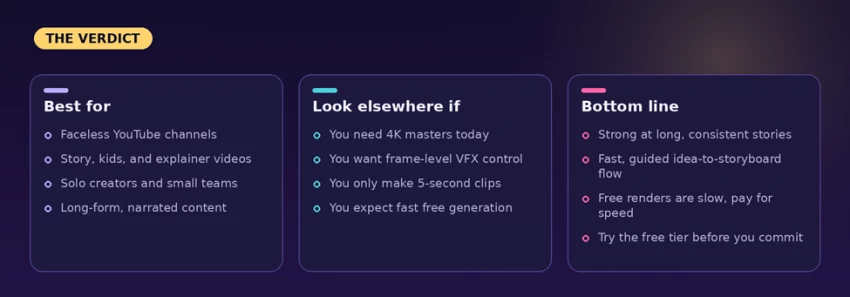
| Quick verdict. MagicLight is one of the few AI video tools designed around long-form, narrated stories instead of isolated clips. Turning a loose script into a structured shot list, auto-detecting characters, and keeping them consistent are its real strengths. The trade-offs are a credit meter that ticks as you work, a free tier that queues generation behind a paid speed upgrade, and a 1080p output ceiling. If you make faceless YouTube videos, explainers, or kids stories, it belongs on your shortlist. Try the free tier first. |
MagicLight AI is a browser-based platform for turning a written idea into a finished, narrated video. Its own framing is story-to-video, and after using it, that label fits. Instead of asking you to generate clips and stitch them together yourself, it runs the whole chain in one place: it reads your script, writes a synopsis, builds a storyboard, designs and voices characters, animates scenes, and adds subtitles.

MagicLight’s homepage. The pitch is long-form video, with a free, no-card start.
The company positions it as a long-form tool, with support for continuous videos up to roughly 50 minutes. That is unusual in a market that mostly caps out at a few seconds per generation. Everything runs in the cloud, so you do not need a powerful machine, and there are companion apps for Android and iOS. One practical note before you start: you need to create a free account to generate anything.
Talk is cheap, so we built something. We opened the Story to Video tool and gave it a short five-scene script we wrote, called Her Own Light, about a young Indian girl who pushes past the expectations placed on her and steps into her own spotlight. Here is the exact script we pasted in, scene by scene.
The exact script we pasted in “Her Own Light” Scene 1: Morning A young Indian brown girl stands in front of a mirror, tying her hair. Sunlight enters through the window. She looks nervous but determined. Voiceover: “She was told to stay small, speak softly, and follow the path already made for her.” Scene 2: Outside She walks through a busy Indian street, passing tea stalls, scooters, school children, and colorful walls. Voiceover: “But every day, she carried a dream bigger than the noise around her.” Scene 3: Struggle She studies late at night, works on her laptop, practices speaking, and faces doubt from people around her. Voiceover: “Some laughed. Some doubted. Some said, ‘This is not for girls like you.’” Scene 4: Confidence She stands on a stage, in a studio, or at her workplace, dressed confidently in modern Indian style. Voiceover: “But she did not ask for permission. She built herself, step by step.” Scene 5: Ending She smiles while walking forward, city lights glowing behind her. Voiceover: “Because she was never meant to fit in. She was meant to shine in her own color.” On-screen text: Her story. Her voice. Her light. |
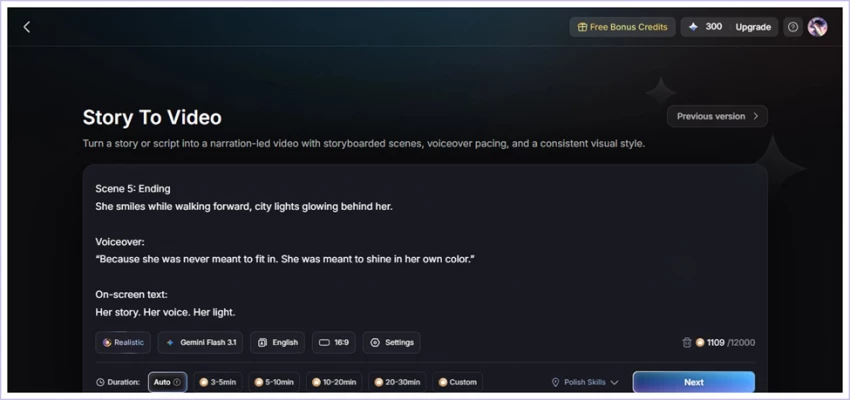
Our script pasted into Story to Video, set to a realistic style at 16:9, with duration on Auto.
Before generating, you set a few options in the same panel: the visual style (we chose Realistic), the language model (ours defaulted to Gemini Flash 3.1), the language, the aspect ratio (16:9), and the duration. The duration presets run from Auto through 3 to 5, 5 to 10, 10 to 20, and 20 to 30 minutes, with a Custom option for longer pieces. The script box is roomy, so pasting a full multi-scene story is no problem, and a new account starts with a pool of free credits to spend.
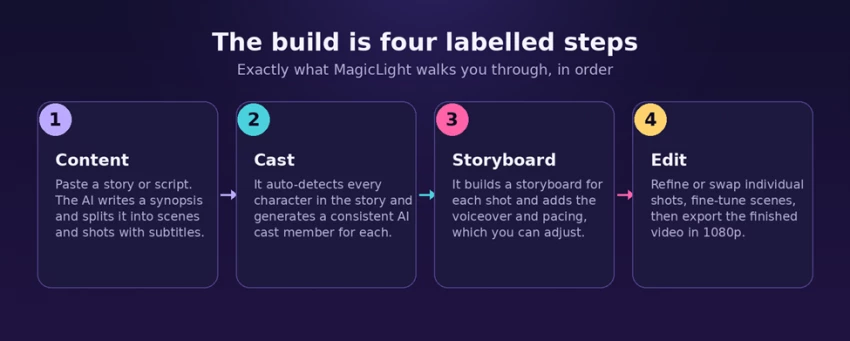
From there the build follows four clearly labelled steps: Content, Cast, Storyboard, and Edit. Here is how each one went.
Content. When we hit next, a Story Analyzing screen took over while Gemini Flash 3.1 read the script. It finished in well under a minute, in line with the 30 to 50 seconds it estimated.
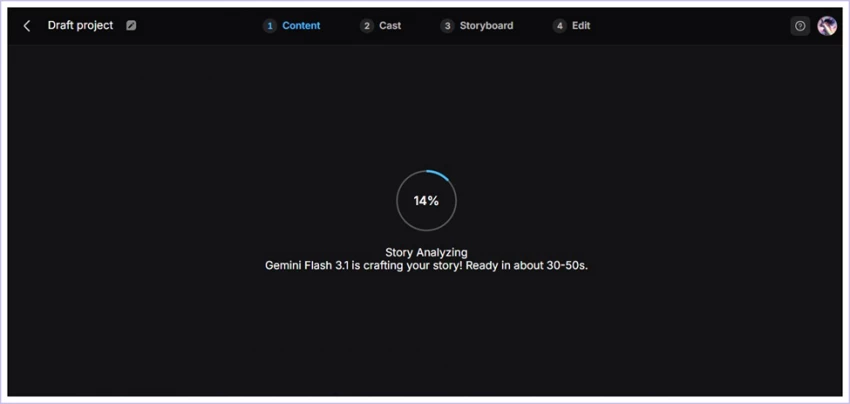
The analysis step. The script model processes your story in well under a minute.
What came back was more useful than we expected. The tool wrote a clean one-paragraph synopsis, then broke our five scenes into a sequence of individual shots, each tagged with its own subtitle line. Our short script expanded into twelve shots and an estimated runtime of about one minute. Watching loose prose turn into a structured shot list automatically is the moment the platform earns its story-to-video label.
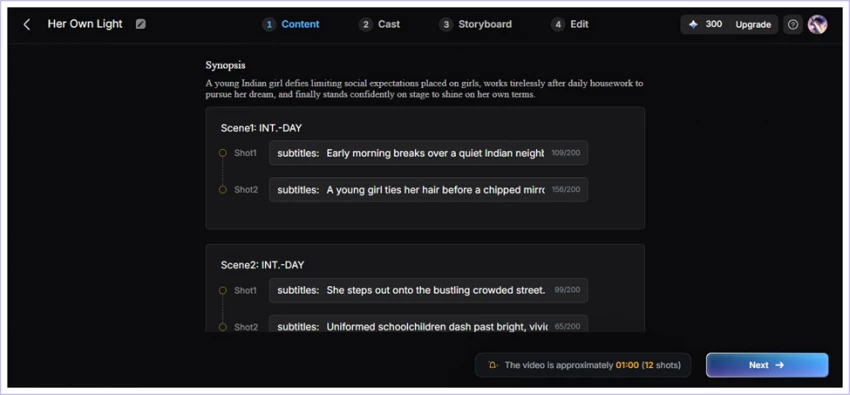
What it produced. A synopsis up top, then the story split into scenes and shots, each with its own subtitle. Five scenes became twelve shots.
Cast. The next step handles characters, and it does so automatically. MagicLight scanned the script, decided there was a single character, a young girl, and generated a consistent AI version of her, shown here in a blue kurta. You can add or swap characters, but the auto-detection did the obvious work for us. Worth noting: advancing from this step cost sixty credits, a reminder that the meter ticks as you move through the flow.
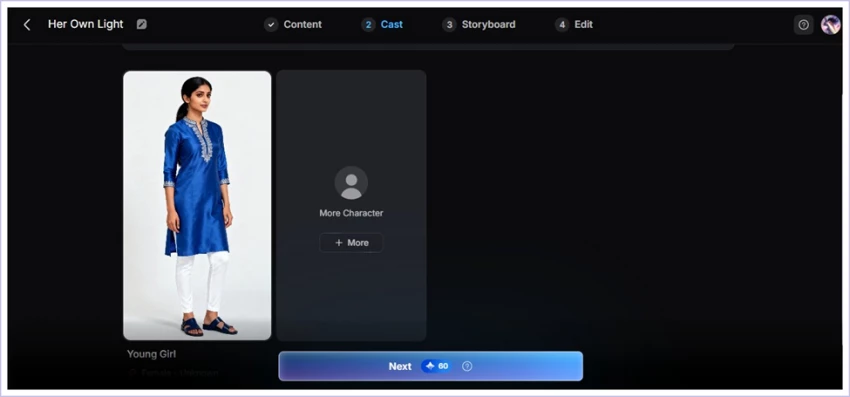
The Cast step auto-detected the single character and generated a consistent version of her.
Storyboard. The third step assembled a storyboard for every shot, twelve in all, and attached a voiceover with pacing controls, including an adjustable voiceover speed. One small but telling detail: the default narrator it assigned was a male voice named Ethan, even though our story follows a girl, so this is a setting you will want to change yourself. On the free plan, generation went into a queue. Each shot sat as waiting in line while a First-Time Speed Trial banner offered to upgrade us to a faster VIP Highway, with a note that the AI keeps generating even if you leave the page.
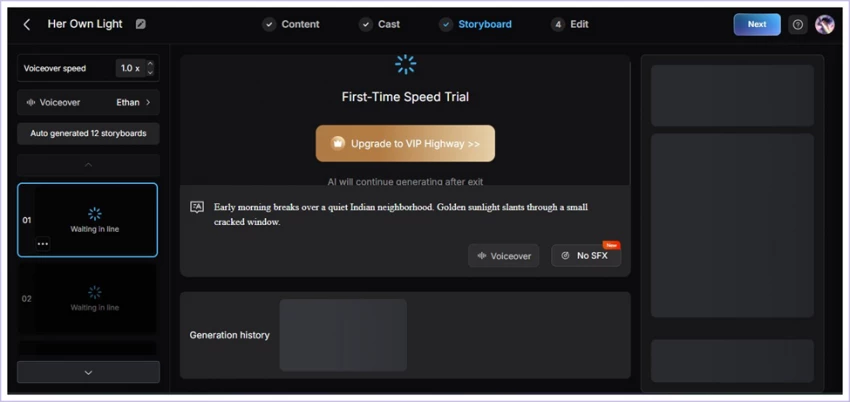
Storyboard generation on the free tier. Shots queue as waiting in line, with a prompt to pay for speed.
Edit. The final step is where you refine or swap individual shots, adjust scenes, and export. Paid plans render in 1080p without a watermark and include a commercial license, so the finished file is ready for YouTube or client work.
Beyond that first build, a few capabilities stood out and are worth calling out one by one.
Character consistency. This is the headline feature and the main reason to pick MagicLight over a general clip generator. Holding a character on-model across many scenes is one of the hardest problems in AI video. MagicLight tackles it with a dedicated consistency engine, and in our run it built a single coherent character straight from the script and carried that look forward, which is a clear step up from tools where a face quietly changes between cuts.
A multi-model hub in one window. Rather than locking you into a single engine, MagicLight gathers a range of models under one roof. Our script step ran on Gemini Flash 3.1, and the platform also offers access to well-known video generators such as Google Veo, Sora, Kling, Hailuo, and Seedance, plus other language models for scripts and dialogue. The practical payoff is matching the model to the job without paying for several separate subscriptions.
Built for length. Most tools think in seconds. MagicLight thinks in minutes, managing pacing, transitions, and narrative flow across a long runtime. Our one-minute test barely scratched what it is built for, which is episodes, short films, and full explainers.
The Nano toolbox. A set of polishing tools rounds things out: text-to-speech and voice cloning so characters get distinct voices or even your own, AI image regeneration to fix a frame that did not land, and 1080p export that is watermark-free on paid plans.
Director-style controls. If you want a more hands-on touch, you can add camera movement such as pans, tilts, and zooms, and edit individual scenes without regenerating the whole video, which saves both time and credits.
On the creative side, the style library is broad. You can lean realistic, as we did, or go for 3D cartoon, Pixar-style, Disney-inspired, anime, Ghibli-inspired, comic, or kid-friendly looks, and new styles are added regularly. The platform handles a wide spread of formats too, from children’s stories and comedy to education, marketing, history, sci-fi, mystery, and documentary-style pieces. Voiceovers cover more than ten languages with a deep set of emotional tones, so reaching a non-English audience is straightforward.
No tool is all upside, and our build surfaced a few things worth knowing before you commit.
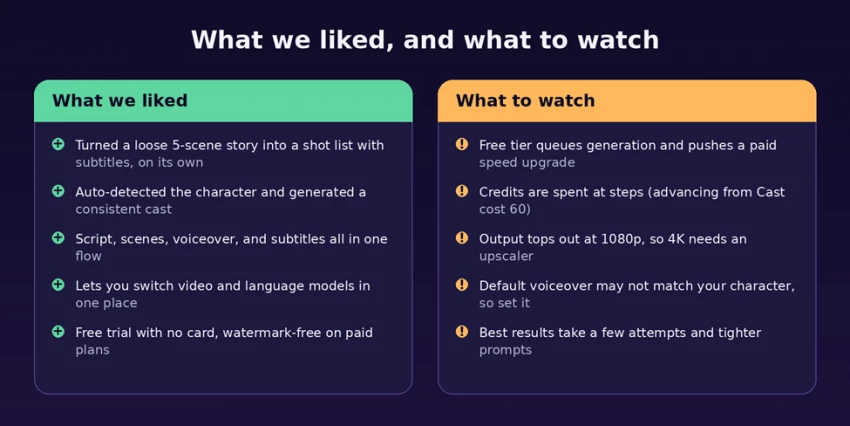
The credit meter ticks as you work. MagicLight does not charge a flat fee per video. Credits are consumed based on length, complexity, and resolution, and they are also spent as you advance through steps, for example the sixty credits to move on from Cast in our run. The platform shows a cost estimate before it renders and only deducts on render, but on large projects the meter adds up quickly and heavy users will feel it.
The free tier queues your generation. On the free plan our storyboard sat in a waiting line, with a First-Time Speed Trial banner nudging us toward a paid VIP lane. Generation continues after you leave the page, which is convenient, but if speed matters you will want a paid plan.
Output is capped at 1080p. For most YouTube and social use that is perfectly fine, but if you need 2K or 4K masters you will have to run the export through a separate upscaler.
Small defaults need a check. The narrator MagicLight assigned by default was a male voice, even though our lead was a girl, so set the voice yourself. More broadly, landing exactly the result you pictured can take a few attempts and tighter prompting, and because everything runs online, a shaky connection will slow you down.
MagicLight keeps a free tier that needs no credit card, which is the right way to start. A new account comes with a pool of credits, enough to run a script through analysis and casting and see the output for yourself before any spend, though, as noted, generation is queued on the free plan.
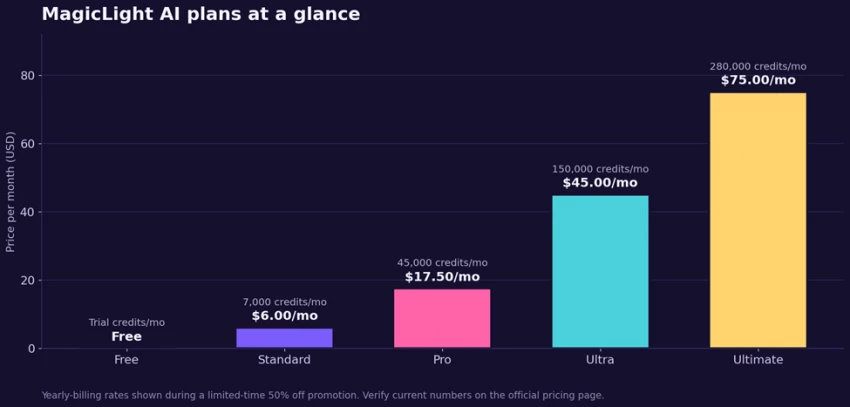
Paid plans are credit based and, at the time of writing, were running on promotional annual pricing. On yearly billing the tiers landed at roughly 6 dollars a month for Standard with 7,000 credits, 17.50 dollars a month for the popular Pro tier with 45,000 credits, 45 dollars a month for Ultra with 150,000 credits, and 75 dollars a month for Ultimate with 280,000 credits. Every paid tier supports the full video length, removes the watermark, and includes a commercial license. Because these numbers shift with promotions and plan changes, treat them as a guide and confirm the live figures on the official pricing page before you buy.
The point to internalize is that credits, not the sticker price, are the real currency here. Pick the tier that matches how much you actually plan to produce, and remember that long, detailed videos burn through credits faster than short, simple ones.
MagicLight fits a clear type of creator. It is an easy recommendation if you run a faceless YouTube channel, make kids stories or explainer content, or want narrated long-form video without learning a full editing suite. Solo creators, freelancers, educators, marketers, and small content teams will get the most out of it, especially anyone who values speed from script to first cut alongside consistent characters across a story.
It is a weaker fit if your work depends on 4K masters, if you want the frame-level visual-effects control that a dedicated editor or a tool like Runway provides, or if you only ever make short standalone clips where a simpler generator would do. If credit-based limits and a queued free tier bother you, weigh that too.
MagicLight AI sets out to solve the part of AI video that most tools skip: turning a story into a finished, watchable, minutes-long video with characters who stay themselves from start to end. Building Her Own Light showed it can do exactly that. The four-step flow is quick and approachable, the automatic shot-listing and character casting genuinely save work, and the long-form focus is rare enough to matter.
The honest caveats are the credit economics, the queued free tier, and the 1080p ceiling. None is a dealbreaker for the audience it targets, but all three should shape which plan you choose. Our advice is simple: spend nothing at first, run a real script through the free tier as we did, and judge the output with your own eyes. If it clicks, the paid plans are reasonably priced for what they unlock.

New Claude Model Targets Agentic AI WorkflowsAnthropic has launched Claude Sonne...
Samuel Osei1 month ago
The Quick verdictInSnoop is a free, browser-based tool that promises to let you...
Alexander Hughes1 month ago
Gemini’s Image Tools Get a Wider RolloutGoogle is expanding access to Gemini’s p...
Alexander Hughes1 month ago
Two AI video generators, two very different first days. I ran PixVerse through i...
Alexander Hughes1 month ago
Two of the most talked-about AI chat platforms. I opened both, picked a characte...
Alexander Hughes1 month ago
The two-minute versionIf you only read one thing, read this. The rest of the doc...
Alexander Hughes1 month ago
Discussion