AI & ML
10 min read
OpenAI.fm Tested: Turning Plain Text into Expressive Speech in Under a Minute
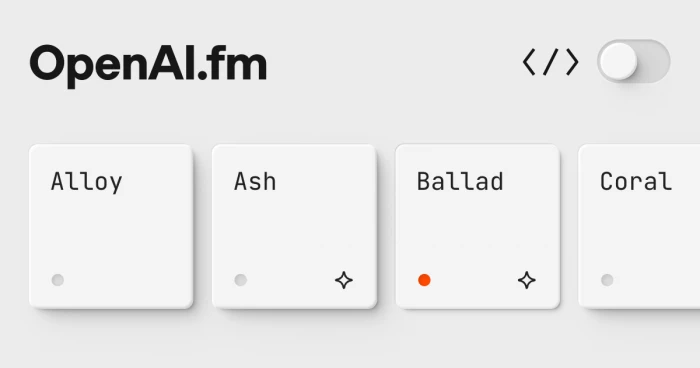
Feed OpenAI.fm a dry sentence about Amazon’s server chips, tell it to read the line like a moody teenager, and a few seconds later that’s exactly what plays back: accurate words, theatrical delivery. That one moment is the entire pitch for this little site.
Here’s the shape of it: you paste some text, choose a voice and a tone, hit play, and the page speaks your words aloud in audio you can download. It’s powered by OpenAI’s GPT-4o mini TTS model, runs entirely in the browser, and costs nothing to try, with no account and no install.
I threw a range of scripts, voices, and tones at it to map out its strengths and its limits. What follows is a tour of the tool, the dials it hands you, a step-by-step on driving it, and the audio it actually produced for me, before finishing with how the wider community received it and where I landed.
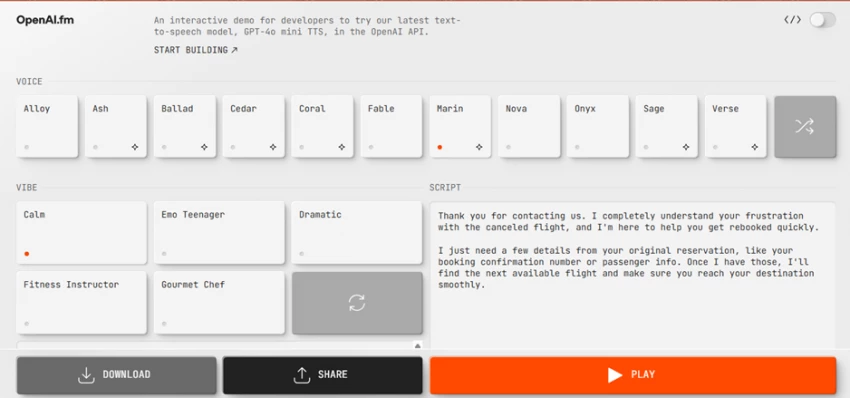
Strip away the polish and OpenAI.fm is the official showcase for GPT-4o mini TTS, OpenAI’s text-to-speech model. The site bills itself as an interactive demo built so developers can try the newest speech model in the OpenAI API.
The honest word for it is “playground.” Nothing asks you to register. Load the page and an example is already sitting there, fully editable, and every part of it is yours to swap. Because the exact model on display is the one you reach through the API, the page doubles as a live preview of whatever you’d eventually wire into an app. That’s why a START BUILDING link and a code button live up at the top.
Image: the OpenAI.fm layout, with voices down the left, vibes in the center, and your script on the right.
Most text-to-speech tools hand you a single field: drop in text, collect audio. OpenAI.fm deliberately splits that into two, and grasping the split is the key to the whole thing.
• The script is the words themselves, the what.
• The voice and vibe decide how those words land, the how.
A vibe is a short instruction that shapes the performance. Choose the Calm preset and the instruction box populates with guidance like “Voice Affect: Calm, composed, and reassuring; project quiet authority and confidence.” That note rides along with your script, and the model delivers your text in that register.
This division is the marquee feature. Leave the script untouched and you can flip the mood from a soothing support rep to a booming narrator without editing a single word. On the API side, this surfaces as an instructions field kept separate from the input text.
Right now the demo carries eleven named voices, plus a random pick. The lineup:
Alloy · Ash · Ballad · Cedar · Coral · Fable · Marin · Nova · Onyx · Sage · Verse
Each carries its own personality: some warm and chatty, others deeper or more neutral. A shuffle button will choose for you if you’d rather not. The quickest way to find the right one is to lock your script in place and click through a handful of voices back to back.
Fresh out of the box, the Vibe panel ships with a small set of presets:
Calm · Emo Teenager · Dramatic · Fitness Instructor · Gourmet Chef
A regenerate button sits beside them to pull in new instruction text on demand. But the presets are only a launch pad. The instruction box beneath them is fully open to editing, so you can spell out your own direction (affect, tone, pacing, pronunciation, emotion) in your own words. This is where the tool stops being a novelty and starts being useful: a couple of lines of direction can reshape an entire read.
Pulling audio out of the tool takes well under a minute. The path I followed:
1. Open it up. Head to openai.fm in any browser. A sample script, voice, and vibe are pre-loaded, so there’s something to hear right away.
2. Choose a voice. Click any card in the Voice row; the active one is marked with a small orange dot.
3. Choose or write a vibe. Pick a preset, then rework the instruction text underneath if you’re after a particular tone, pace, or feeling.
4. Drop in your script. Wipe the sample text in the Script box on the right and paste the words you want spoken.
5. Hit Play. Press the orange Play button at the bottom. A few seconds later the page reads your script in the voice and tone you chose, and the button becomes a Stop control while it runs.
6. Save or pass it on. Use Download for an audio file, Share for a link, or the code button up top to lift the API snippet.
That’s the full loop. Tweak a setting, press play again, and you’ve got a new take.
I wanted to see how far the tone control could bend, so I handed it a deliberately dry, technical paragraph and paired it with a voice and vibe that had no business going together.
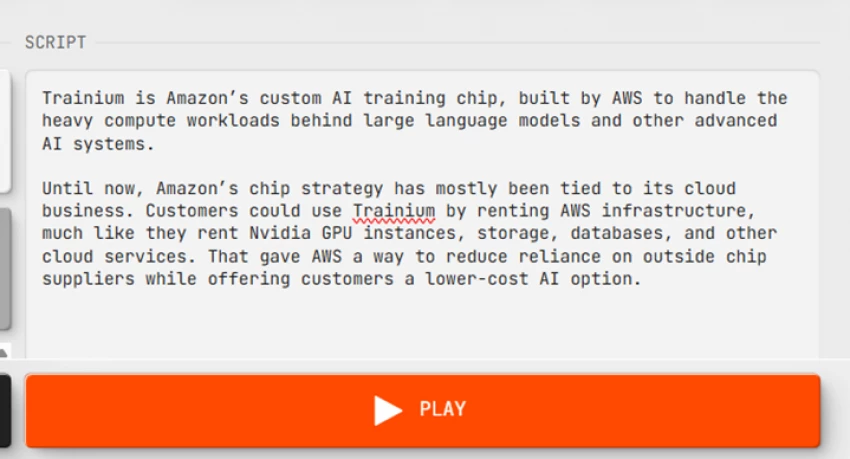
The script was a plain hardware explainer:
Trainium is Amazon’s custom AI training chip, built by AWS to handle the heavy compute workloads behind large language models and other advanced AI systems.
For the settings, I went with the Cedar voice and the Emo Teenager vibe, then pressed play.
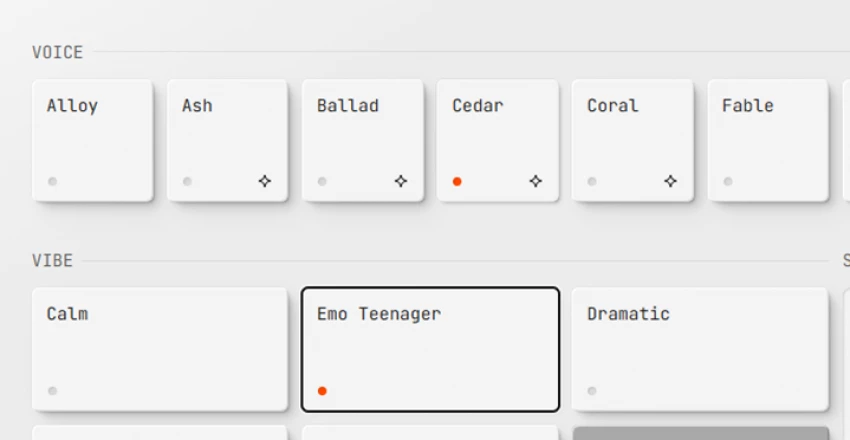
Image: the technical script I tested, with my settings (Cedar voice, Emo Teenager vibe).
The output landed seconds later: the page read the whole paragraph aloud and I saved it. What came back was a standard MP3, a touch under 33 seconds, recorded in mono at a 24 kHz sample rate: a clean, lightweight file you can drop straight into a video, a slide, or a podcast draft.
The fun was in the result. A dense paragraph about AWS silicon, performed as a sulky teenager, produced exactly the intentional clash I was hoping for. The words stayed precise while the tone went moody and expressive. It made the point better than any spec sheet could: the model isn’t reading your text, it’s acting it.
To test the opposite extreme, I swapped to the Marin voice with the Calm vibe and ran the customer-service script that loads by default, the flight-rebooking apology. That pairing came out like a genuine support agent: steady, warm, reassuring, the sort of read you’d happily put in front of customers. Same tool, a completely different feel, and all I’d changed was the voice and vibe.
Once the audio exists, the bottom bar offers three ways to put it to work:
• Download saves the spoken audio as a file you own and can reuse.
• Share spins up a link to your exact setup so someone else can hear it.
• The code button hands over the API call behind your settings, so moving from demo to real project doesn’t involve guessing parameters.
Poking at OpenAI.fm in the browser is free. The engine underneath, GPT-4o mini TTS, is the part you pay for once you build with it through the OpenAI API, billed by usage. It sits among the cheaper speech models out there, frequently quoted at around $0.015 per minute of generated audio. Rates move, though, so glance at OpenAI’s live pricing page before you budget. For most prototypes and small builds, the spend is negligible.
The page targets developers, but it’s just as handy for anyone who needs a voice in a hurry. Realistic uses:
• Prototyping the voice and tone of an app, assistant, or phone system before any code gets written.
• Narration for short videos, demos, reels, and explainers.
• Draft voiceovers for podcasts, e-learning, or product walkthroughs.
• Accessibility: turning written content into audio.
• Quick experiments to settle on the right voice for a brand or character.
Because every change is audible on the spot, it’s a great place to lock in tone decisions before committing to a paid pipeline.
| What works | Where it’s thin |
| Free to try in the browser, no account required | It’s a demo, not a studio, so fine controls are limited |
| Voice plus vibe gives real command over tone | Tone can wander on longer scripts |
| Eleven voices alongside fully editable instructions | English gets the best results; other languages are hit and miss |
| Quick generation, with audio ready in seconds | No timeline editing, layering, or multi-speaker mixing |
| One-click download, share link, and API code | Delivery can stumble on unusual words or proper names |
| Clean, compact MP3 files ready to reuse | Scaling up still means paying for the API |
OpenAI shipped GPT-4o mini TTS and the OpenAI.fm demo in March 2025, and the tech press and developer crowd covered it widely. Reception has skewed positive, and most of the applause points at the same thing: control.
A few themes recur across the write-ups and hands-on pieces. Reviewers liked steering delivery with plain-language instructions instead of wrestling sliders, and plenty singled out the vibe concept as the thing that separates it from older text-to-speech tools. Voice quality drew steady praise for sounding natural and expressive, and developers welcomed how cheap and straightforward the underlying model is to call. The demo’s own polish and playfulness earned goodwill too, since it lets anyone hear the model in seconds.
The gripes are mostly about scope, not quality. The recurring notes: it’s a demo rather than a production studio, so there’s no timeline editing or multi-speaker control; results are strongest in English; and very long scripts or odd proper nouns can throw the occasional flat or off delivery. A few also flag that the genuinely scalable version lives behind the paid API. The website is the shop window.
One caveat worth repeating: reviews and product details shift over time. If you’re quoting specific numbers or features in your own piece, confirm them against the original sources and the live site before you publish.
After running a stack of scripts through it, OpenAI.fm earned a spot in my bookmarks. What won me over wasn’t the voice list. Plenty of tools have voices. It was how fast I could change the feel of a read. Dropping a dry paragraph about Amazon’s chips into an emo-teenager voice, then flipping a flight-rebooking apology into a calm, professional support tone, all inside the same minute, made the value impossible to miss.
On the practical side, it delivered. Generation took seconds, the audio arrived as a tidy 33-second MP3 at 24 kHz, and saving it was a single click. The file dropped cleanly into other tools with nothing to convert.
It isn’t a full production suite and shouldn’t be measured like one. The demo has no fine controls for speed or layering, longer scripts can drift in tone, and the real heavy lifting at scale belongs to the paid API. But as a free way to audition voices, dial in a tone with plain instructions, and walk off with usable audio plus the exact API code to recreate it, it’s one of the easiest text-to-speech tools to recommend right now.
My take: if you write, build, narrate, or just want to hear your words spoken well, open OpenAI.fm and push one script through it. Inside a minute you’ll know whether it belongs in your workflow.

New Claude Model Targets Agentic AI WorkflowsAnthropic has launched Claude Sonne...
Samuel Osei3 months ago

Gemini’s Image Tools Get a Wider RolloutGoogle is expanding access to Gemini’s p...
Alexander Hughes3 months ago

Two AI video generators, two very different first days. I ran PixVerse through i...
Alexander Hughes3 months ago

Two of the most talked-about AI chat platforms. I opened both, picked a characte...
Alexander Hughes3 months ago

The two-minute versionIf you only read one thing, read this. The rest of the doc...
Alexander Hughes3 months ago
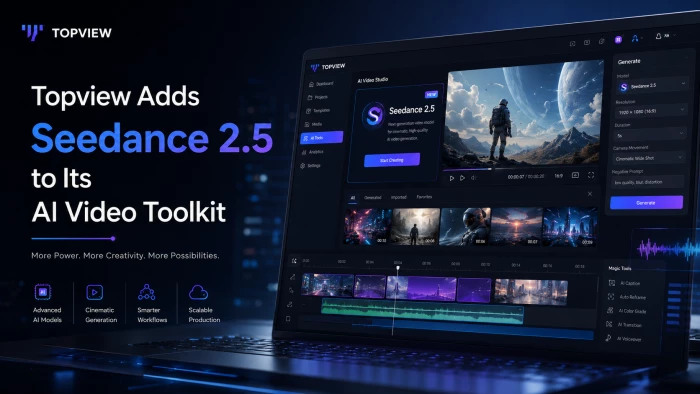
Why Seedance 2.5 mattersSeedance 2.5 is the latest release in ByteDance’s Seedan...
Alexander Hughes3 months ago
Discussion